- Rated ( votes)
- 3,336 views
-
- Stronghold Crusader Tutorial
- 3 mins


Attention! This tutorial applies to Stronghold Crusader: Definitive Edition only.
With the Winter Update (v2.6), adding media to custom lords, as well as overriding the existing ones for the stock opponents has been made possible by Firefly Studios. After this short tutorial, you will be able to bring your own opponent to life with animations, voice lines and the like!
First, let's get a quick recap on what makes an AI opponent:
For the following scenario, imagine that the Canary wanted to pose as the Jewel, being the fully fledged and mature women she could be, but he only brought his costume, not his military strategies!
In other words, we are creating a custom lord based on the Canary's design. Let's call this one "The Emerald"! Make sure to carefully follow the steps below.
Note: In this guide, castles and lord profiles won't be touched, neither will the
1.: Creating a Custom Lord
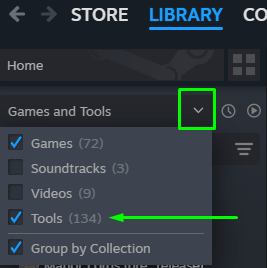
For this step, you will need to access the Castle & CPU Lord Editor. In Steam, you can do so by navigating to your games Library and enabling "Tools" in the filters. After this, the CPU Editor can be downloaded and then opened:
Open the Editor. Select the Canary's picture, click on "Create Custom Lord from Default", and save the new configuration by naming it "The Emerald".
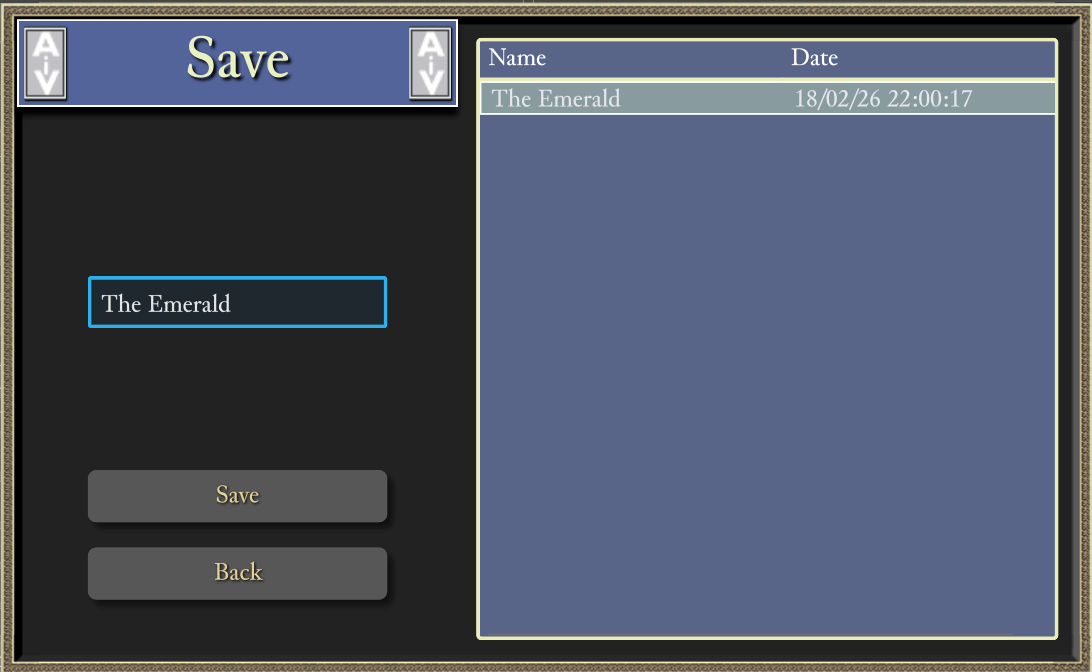
Click "Save" again, creating our custom lord. Then, click "Create Custom Avatar Template" to create a demo avatar for the Canary. This will open a File Explorer with another folder. You can close the Lord Editor now.
2. Adding our Custom Media
Now we are going to substitute the Canary's content with the Jewel's ones.
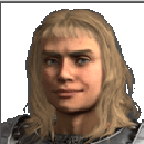
The Explorer window that just opened contains a file "Avatar.png", which is a transparent picture file for the avatar. Rename this "Avatar.old", then download the image shown below to this location. Set its name "avatar.png" and then close the Explorer.
After this, launch SHC:DE and after you are greeted by the main menu, click on the Settings button right of the Firefly logo, then click on "Open Settings Folder" just above the chicken (excerpt from the Hungarian version).
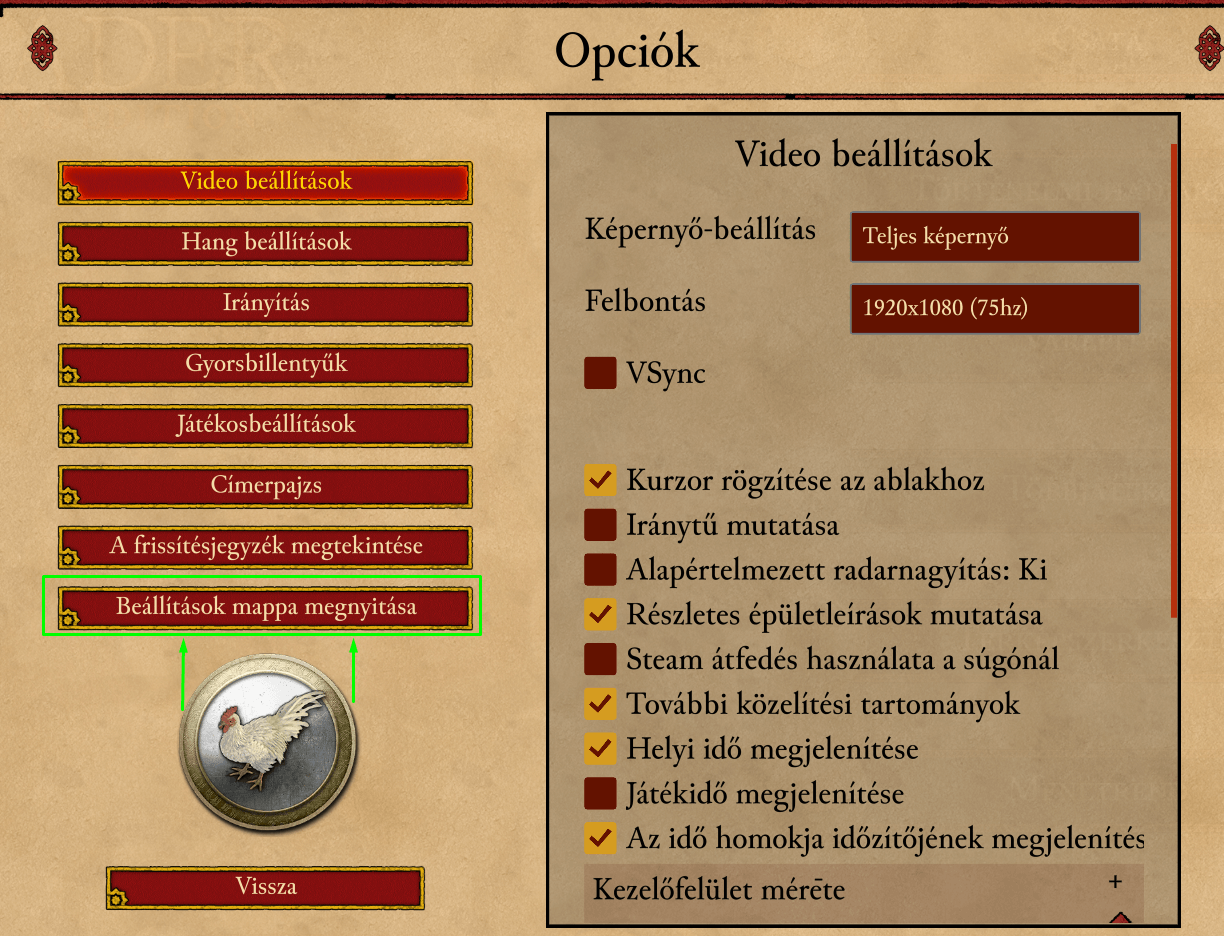
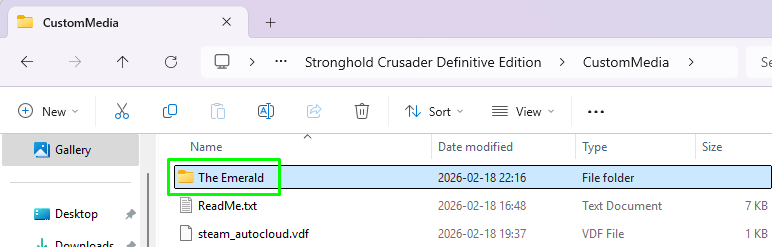
This will open a File Explorer with the DE context folder. Don't tarry and open the folder "CustomMedia", then create a new folder called "The Emerald". This is the place where the new files will be copied to.
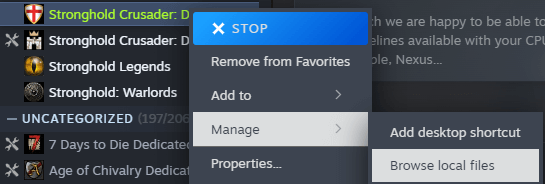
Then, right-click the Definitive Edition's entry in the Steam game library, click on "Manage" in the context menu popping up, then choose "Browse local files". This will take you to the installation location of SHC:DE on your hard drive, opening yet another File Explorer.
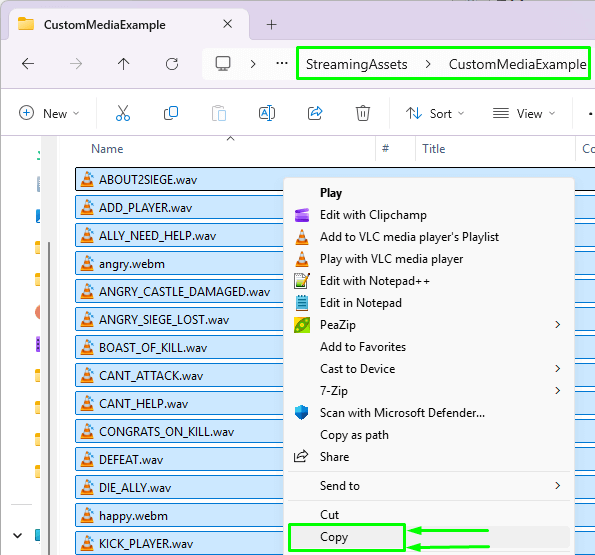
Open the folder "Stronghold Crusader Definitive Edition_Data", then "StreamingAssets", finally "CustomMediaExample" within. Select all files and copy them to the folder "The Emerald" shown in the other File Explorer window. If you did everything right, the copied contents will land exactly there: voice lines, video clips and subtitles.
All that is left is creating the avatar for the Canary.
3. Trying out the Emerald
Open up Crusader DE and set up a Custom Skirmish game, with the Emerald as an ally, and the Canary as your enemy for good measure. Also make sure to activate the option in the special settings which makes the AI start with their castles already built. Start the game.
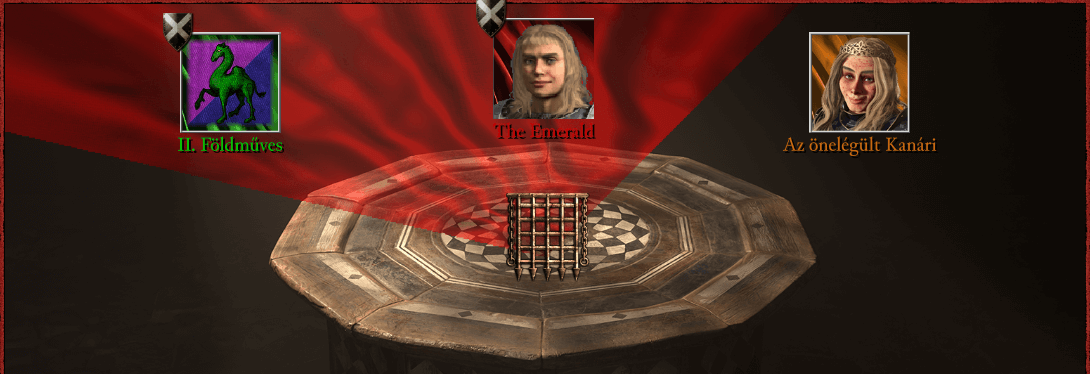
When you load, you should see that the Emerald built a castle belonging to the Canary, with all traps and workshops present:
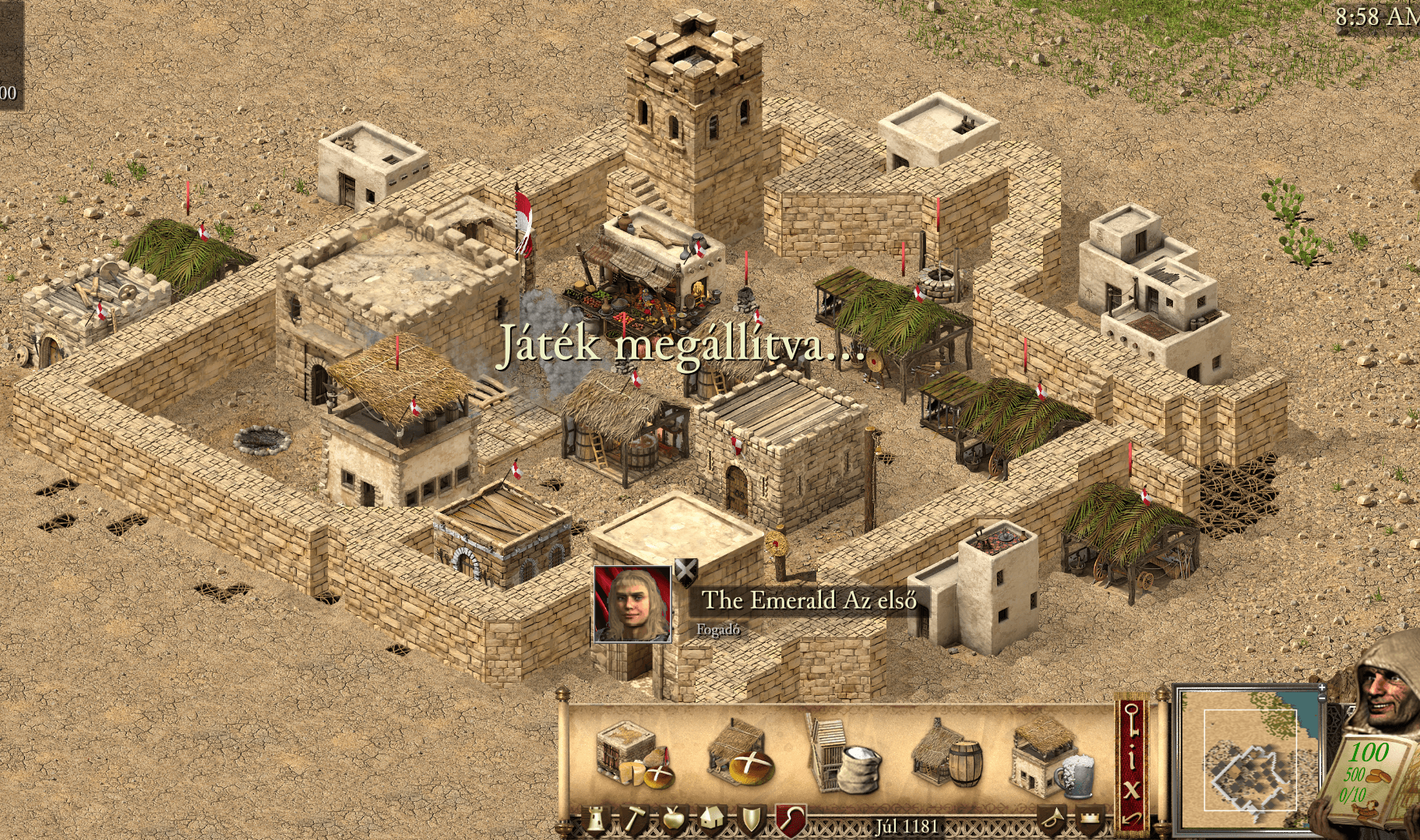
Try instructing her to attack the Canary. You should get the following:
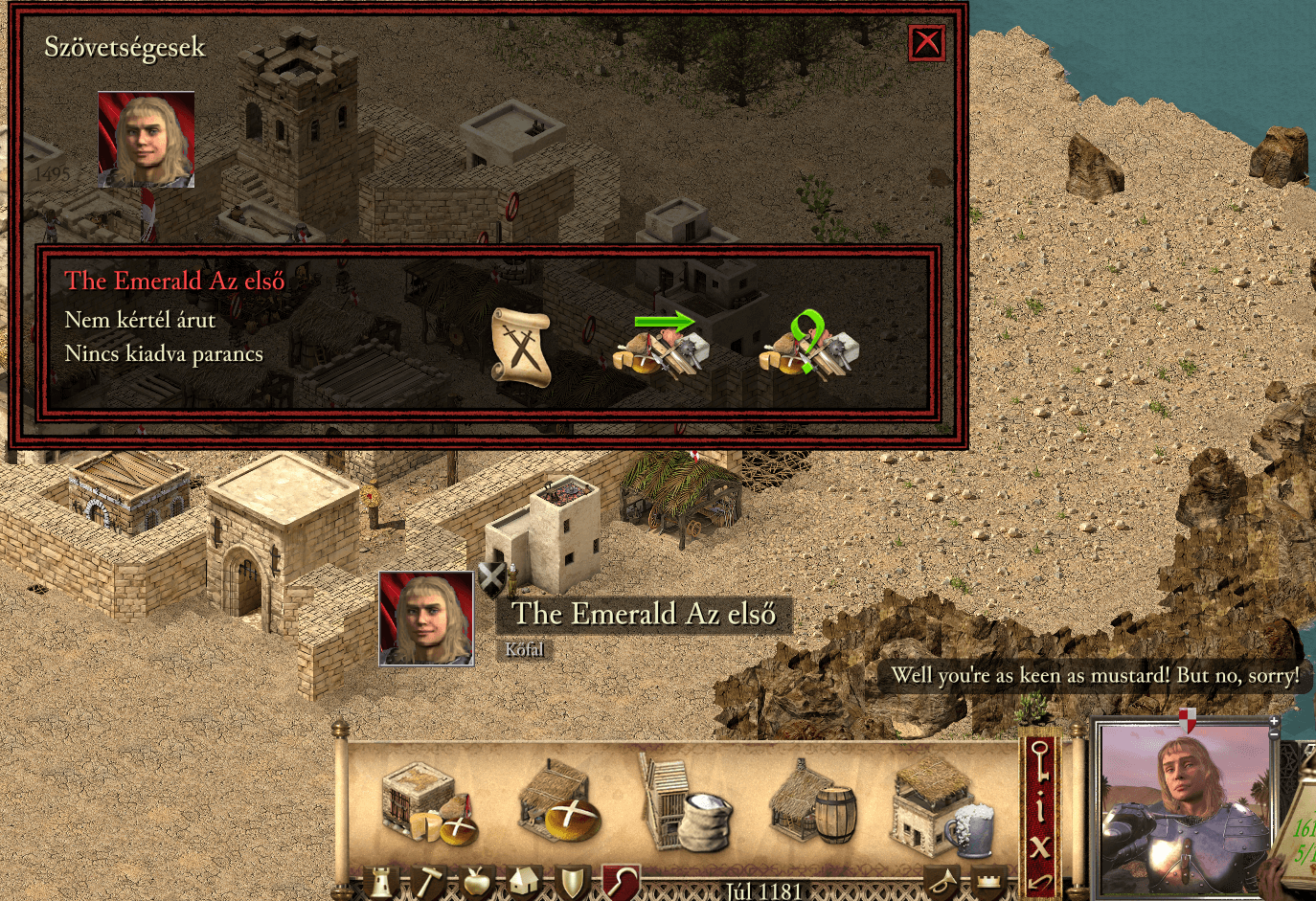
Success! We got a custom opponent set up that builds, talks and behaves just as we intended to.
You can of course edit the materials with respective programs. Thankfully, Firefly Studios included a "ReadMe.txt" file in the "CustomMedia" folder (access it from the Game Settings from within SHC:DE), where you can find more details and recommendations on how the respective files work.
Happy editing!